This rule allows you to change the order in which payment methods appear at checkout. You can prioritize specific payment options based on conditions such as cart total, shipping country, or product tags, etc.
This helps streamline the customer experience by displaying the most preferred or relevant payment methods first.
The following steps show how to create and configure a Reorder Payment Methods rule using the app.
From your Shopify admin, open the app. In the sidebar, go to the Rules section and click "Create Rule".
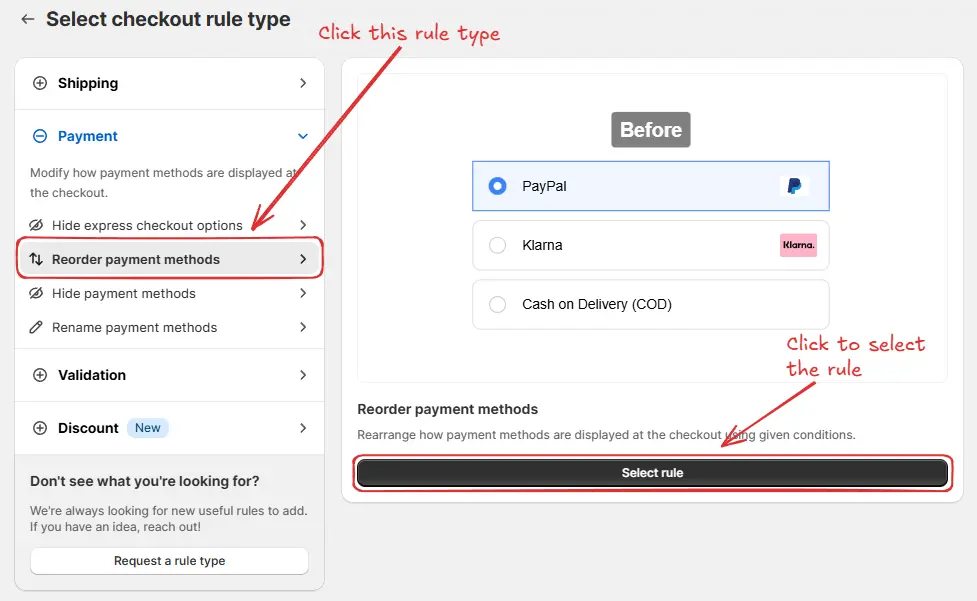
Then, You’ll be redirected to the Select checkout rule type screen. Choose category "Payment" → select checkout rule type "Reorder Payment Methods" → click “Select Rule”.
Then, in the template selection, choose an option based on your requirements. In most cases, you can choose the empty rule as a starting point and modify it to your needs. Even if you choose a prefilled template, you will be able to modify it later.
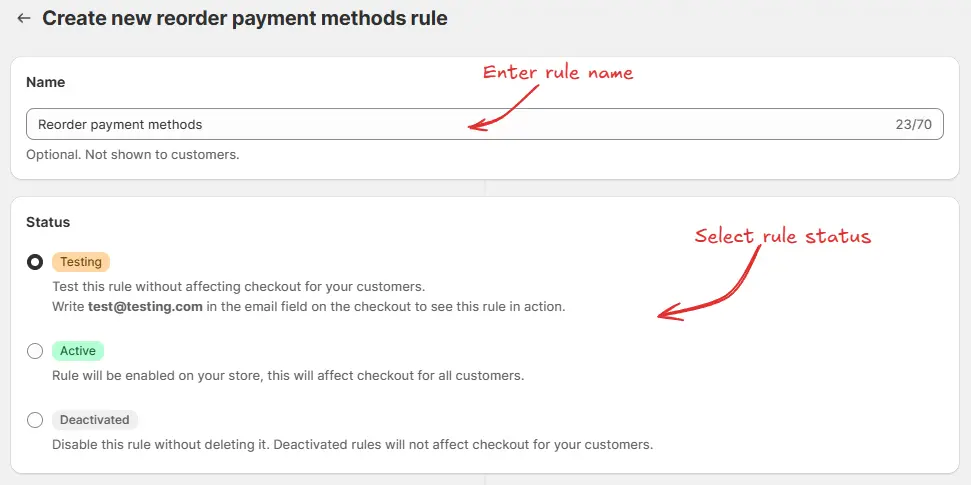
Next, you’ll land on the Create new reorder payment methods rule screen, where you can configure your rule.
To configure the rule, first optionally we can add a name such as "Reorder payment methods" to describe what it does. Then, select the rule status: Testing, Active, or Deactivated.
Here we are going to choose Testing status, so we can quickly test the rule without affecting the checkout for actual customers.
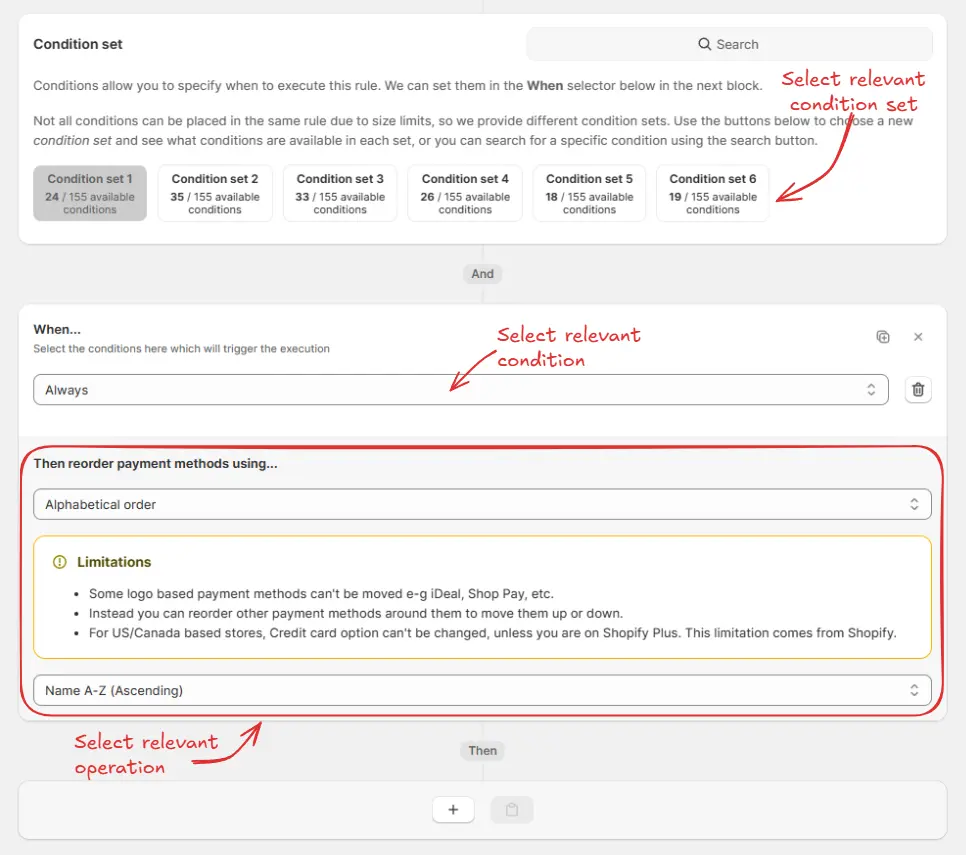
Next, on the same screen, select the relevant condition set, condition, and action.
As an example, we are going to choose the default Condition set 1, set the rule to always run, and select the operation Alphabetical order by selecting Name A to Z (Ascending) to reorder the payment methods.
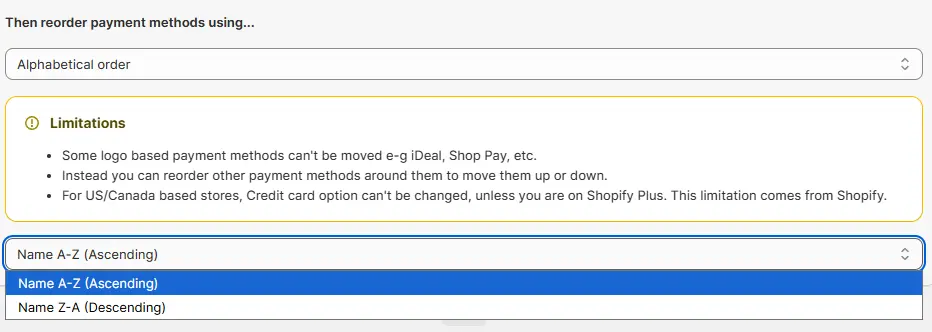
In the action section, you have two options to choose from:
Alphabetical order
– This allows you to reorder the payment methods alphabetically. You can choose either
Name A-Z (Ascending)
or
Name Z-A (Descending)
.
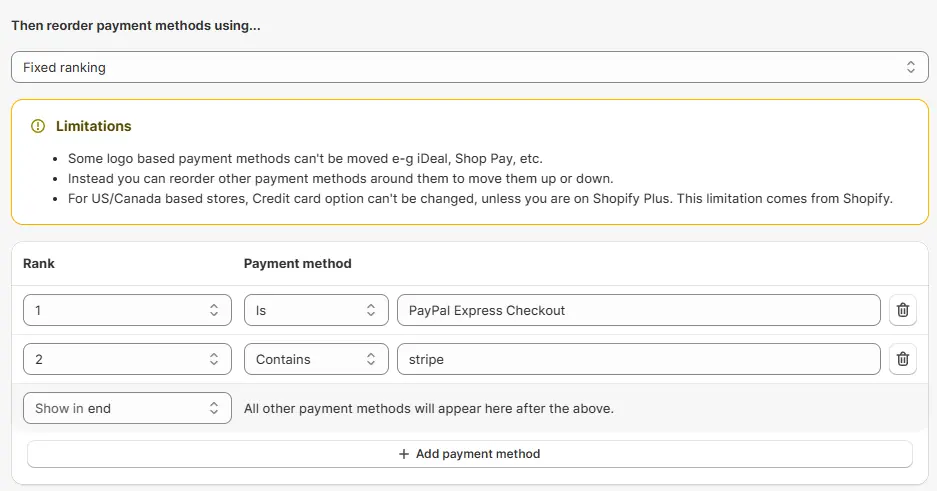
Fixed ranking
– This option lets you manually set the order of payment methods by assigning a fixed rank (e.g., 1, 2, 3, etc.) to each method, so you can control exactly which method appears in which
position
.
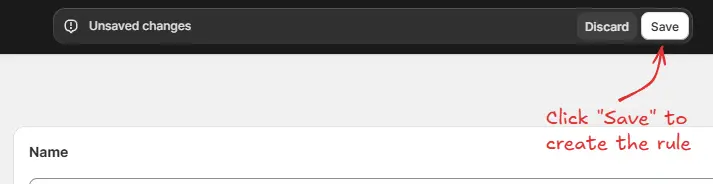
Finally, click the Save button at the top to create and save your rule.
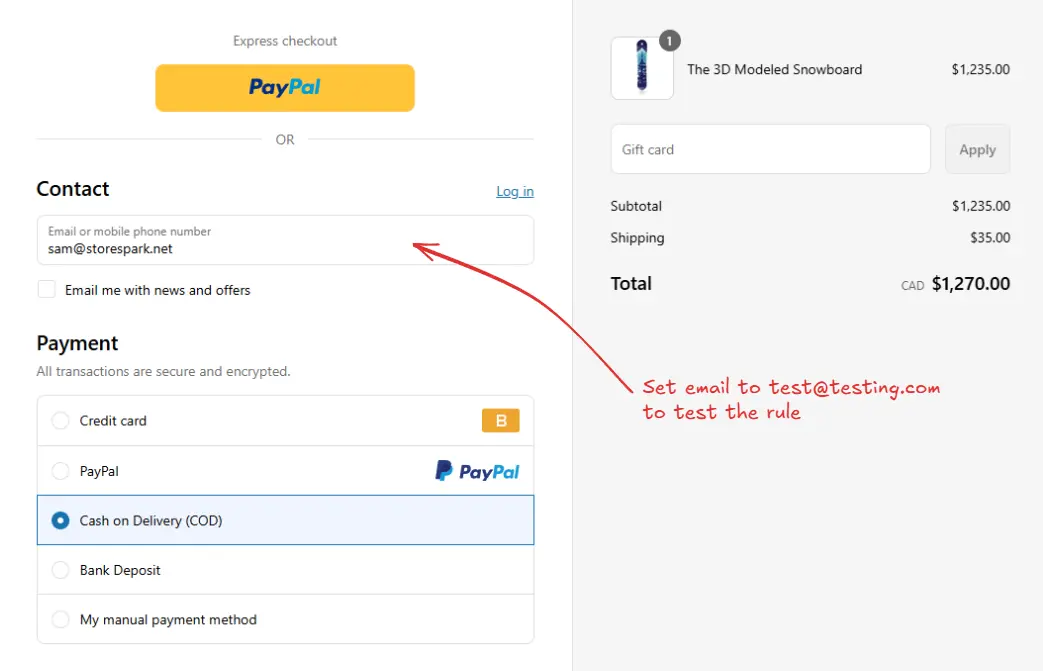
Since, the rule is set to testing status, we have to use [email protected] as the email, instead of the actual email, to run the rule at checkout.
The image below shows the checkout page
before
the testing email address was used. Please note the order of the payment methods.
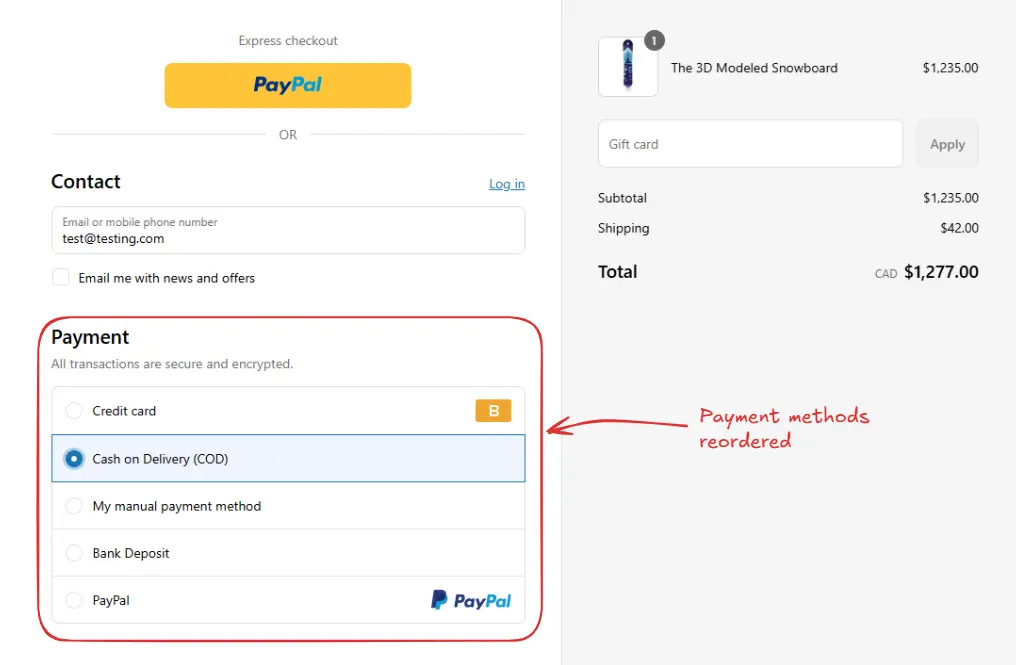
As an example, after setting the email, the checkout rule runs, and the payment methods are reordered.
By default, Shopify will always make the top payment method the default preselected payment method. So, using this rule, you can change the default preselected payment method to any payment method which you want, by making it the top payment method.
To do this, as an example, you can use the Fixed ranking option, and set the rank to 1 for the payment method you want to be the default preselected payment method. Please make sure, "All other payment methods will appear here after the above" is set to "Show in end".
Please note, to test this, you will need to activate the rule, and then clear out the cookies/cache of the browser, so the default preselected payment method is not your previously selected payment method (Shopify can save this selection in cache for your browser). Or you can use a different brwoser as well to see what your customers will see.
Once testing is done, we can activate the rule, so it can start making changes to the checkout for actual customers. Only activated rules can make changes to the checkout for all customers.
Click on Rules in the sidebar to view all rules. Select the rule you want to activate, then click the Activate button to activate it.
Rule activation is only available on paid plans. If you haven't upgraded your plan yet, follow the instructions [here](https://docs.checkoutrules.com/guides/en/get-started/installation#upgrade-your-plan) to upgrade.

Some logo-based payment methods can't be moved (e.g., iDeal, Shop Pay, etc.).
Instead, you can reorder other payment methods around them to move them up or down.
For US/Canada-based stores, the Credit card option can't be changed unless you are on Shopify Plus. This limitation comes from Shopify.
